Creating Custom Housekeeping Schedules
The Custom Housekeeping Setup option allows users to create customized housekeeping schedules for each room type in the property.
Breakpoint: 75065 - Custom Housekeeping (Housekeeping - Housekeeping)
Perform the following steps to create customized housekeeping schedules:
Navigate to Settings ➜ Housekeeping Setup ➜ Custom Housekeeping Setup.
Click Create Custom Housekeeping Setup. The Create Custom Housekeeping Setup screen appears.
Refer to the following table and fill in the fields:
|
Field |
Description |
|---|---|
|
Pattern Code |
A unique code to identify the service pattern to be followed for the room by the housekeeper. Up to 15 alphanumeric characters are supported. |
|
Pattern Name |
A name for the service pattern to be followed by the housekeeper. Up to 50 alphanumeric characters are supported. |
|
Pattern Type |
The section includes the following options:
|
|
Room Type |
The room type for which the custom housekeeping schedule must be created. |
|
Origin Code |
The source from where the guest came or heard about the property. The origin codes created in the Origins (Settings ➜ General) screen are displayed in this drop-down list. This data can be helpful when the property sets up custom housekeeping based on the origin of the guest. Users can create housekeeping schedules for different origins but the same room type. |
|
Minimum Number of Nights |
The minimum number of nights the user must make the booking for to apply the customized housekeeping schedule. |
|
Service Based On Days |
The number of days the customized housekeeping service is scheduled. The user can create a schedule for the next seven days. |
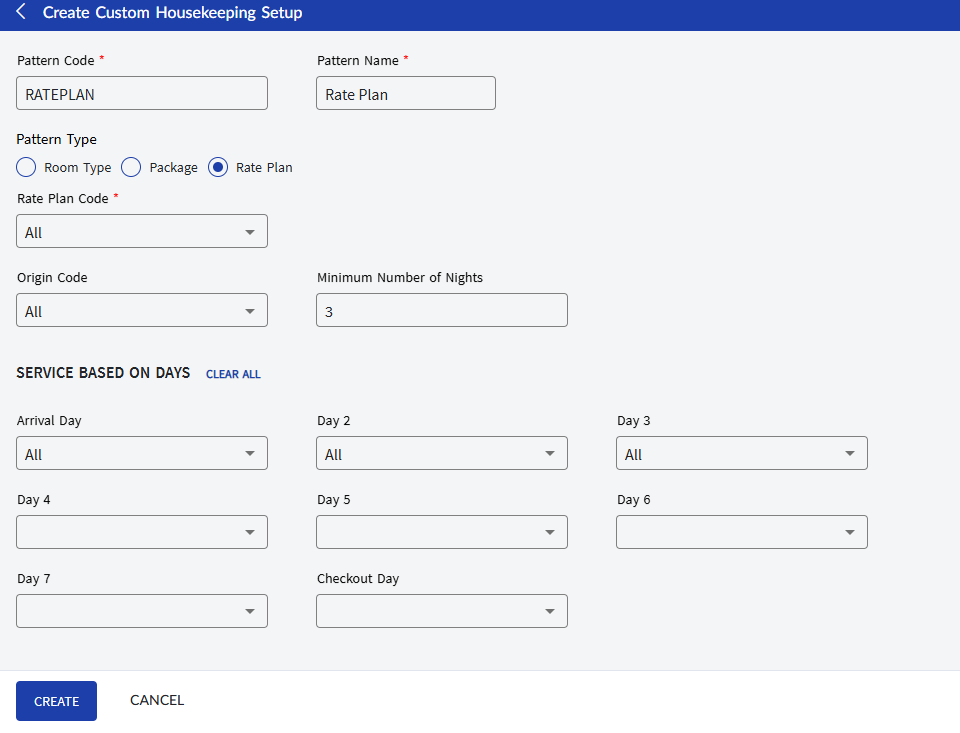
Click Create. The customized housekeeping schedule is created and displayed in the grid.
Users can also perform the following actions in the Custom Housekeeping Setup screen:
-
Modify the details of the housekeeping pattern using the Edit icon.
-
Delete the housekeeping pattern record using the Delete icon.
-
Search for the housekeeping pattern record using the pattern code or name.
-
Group records with the same housekeeping pattern name by enabling the Group by Pattern toggle switch.
-
Filter records in the grid based on room type and source code.