System Passcode
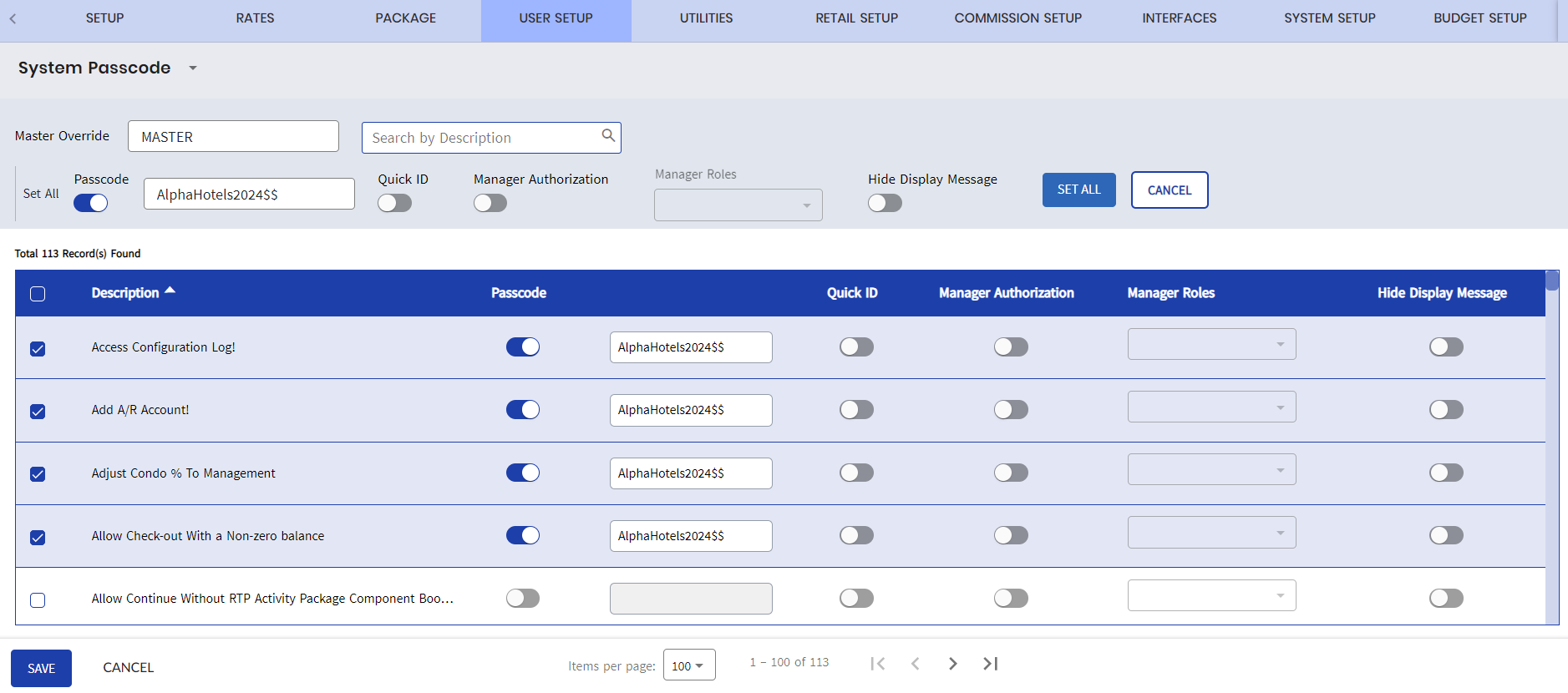
The System Passcode menu provide properties the ability to enable secondary authorization for users performing transactions and/or adjustments. Whenever a user is about to perform these actions in the application, the system will prompt the user to enter the passcode, quick ID or user credentials based on a configuration to proceed.
However, they can only use one authorization method for each entry displayed in the System Passcode screen. For instance, if the user chooses to enable the passcode authorization method for a particular record, any other authorization methods currently in use, such as quick ID or manager authorization, will be automatically disabled for that record.
In addition, users can set a preferred authorization method for multiple records selected in the grid simultaneously.
If there is no authorization method set for a functionality, users will only be prompted with a pop-up message asking them to confirm whether they want to proceed with the action or not, and no restrictions will be applied. Users can also choose to hide the pop-up message based on configuration settings.
Breakpoint: 50530 - System Passcode (Engineering - Manager)
Perform the following steps to copy a class access:
Navigate to Settings ➜ User Setup ➜ System Passcode.
Search for a function by entering the description in the search box.
Enter the preferred authorization method against the function.
The following authorization methods include:
-
Passcode - When enabled, users can set a unique passcode in the numerical text field.
-
Quick ID - When enabled, users must enter their quick ID to override functionalities or screens.
-
Manager Authorization - When enabled, users must enter their user credentials to override functionalities or screens. Also, the Manager Roles drop-down list consisting of all the users will be available for selection. All user records created in the Role Setup screen (Settings ➜ User Setup ➜ Role Setup) will be displayed as options in the drop-down list. Users can select multiple user roles from the list, if preferred.
-
Hide Display Message - When enabled, the confirmation pop-message displayed for accessing functionalities or screens will no longer be displayed and no restrictions will be applied. In addition, the flags for passcode, quick ID, and manager authorization will be automatically disabled.
The Set All section allows properties to set an authorization method to all the selected functionalities at once. Once an authorization method is selected and the Set All button is clicked, all the selected functionalities in the grid will be automatically set to the preferred authorization method.
Click Save.
Users can use the Master Override field to use one passcode for all functions and to override all existing passcodes.