Accounts Receivable Code Setup
The Accounts Receivable Code Setup menu enables users to set up transaction codes, discount categories, account categories, and other miscellaneous categories for A/R accounts. The following options are available:
-
A/R Transaction Code - allows users to create transaction codes that can be used for posting A/R account transactions. The transaction code can be a payment method or can be used to post charges to the accounts receivable account.
-
Credit Card Payment Setup – allows users to create payment networks for credit card payments.
-
A/R Account Categories - allows users to create account categories based on which the A/R accounts must be created in the system.
-
A/R Account Categories 2 - allows users to create secondary categories for the customer account.
-
A/R Miscellaneous Categories - allows users to create other miscellaneous categories that can be added to the A/R account.
-
A/R Discount Categories - allows users to create discount categories that can be added to the A/R account to enable customers to avail discounts.
Creating Transaction Codes
The A/R Transaction Code menu enables users to create transaction codes that can be used to identify transactions in a batch and post charges to the A/R account. The user can either use this transaction code as a payment method or only to post charges based on the configurations made in the Create A/R Transaction screen.
Breakpoint: 190055 - A/R Transaction Code (Engineering - Accounting)
Perform the following steps to create a transaction code:
Navigate to Accounting ➜ Accounts Receivable ➜ Accounts Receivable Code Setup ➜ A/R Transaction Code.
Click Create A/R Transaction to create a new transaction code record.
Refer to the following table and fill in the fields:
|
Field |
Description |
|---|---|
|
Transaction Code |
A unique code to identify transactions in the A/R account. Up to 6 alphanumeric characters are supported. |
|
Transaction Description |
A name for the transaction. Up to 40 alphanumeric characters are supported. |
|
G/L Account Code |
For future use |
|
Payment Method |
When enabled, the created transaction code can be used as a payment method and will be displayed as an option (in the drop-down list) in the Transaction column when creating a batch in the Payment Maintenance tab. By default, this option will be disabled. |
|
A/R Tax Code |
The tax code that must be mapped to the created transaction code. The user can either enter the preferred tax code in the A/R Tax Code field or click Search A/R Tax Code field to search for and select the preferred tax code. The records of the taxes created in the Taxes (Settings ➜ Retail Setup ➜ Code Setup ➜ Taxes) screen are displayed as options in the drop-down list. |
|
Print Description |
A description or any comments for the transaction. The text entered here will be displayed when users generate the related reports in the Reports module. |
|
Post Type |
Select the preferred post type from the drop-down list. The records of the post types created in the Post Types (Settings ➜ Setup ➜ General) screen are displayed as options in the drop-down list. |
|
List Order |
The order in which the transaction code must appear in the grid. |
|
Effective From |
The date from when the transaction code must be active. |
|
Active |
When enabled, it indicates that the transaction code is active. |
|
G/L Account Assigning |
|
|
Allow assigning the G/L Accounts within A/R Batches for the Transaction Code |
For future use |
|
Allow assigning any G/L Accounts |
For future use |
|
Only allow options to one of the any G/L Accounts below |
For future use |
|
G/L Account Setup |
For future use |
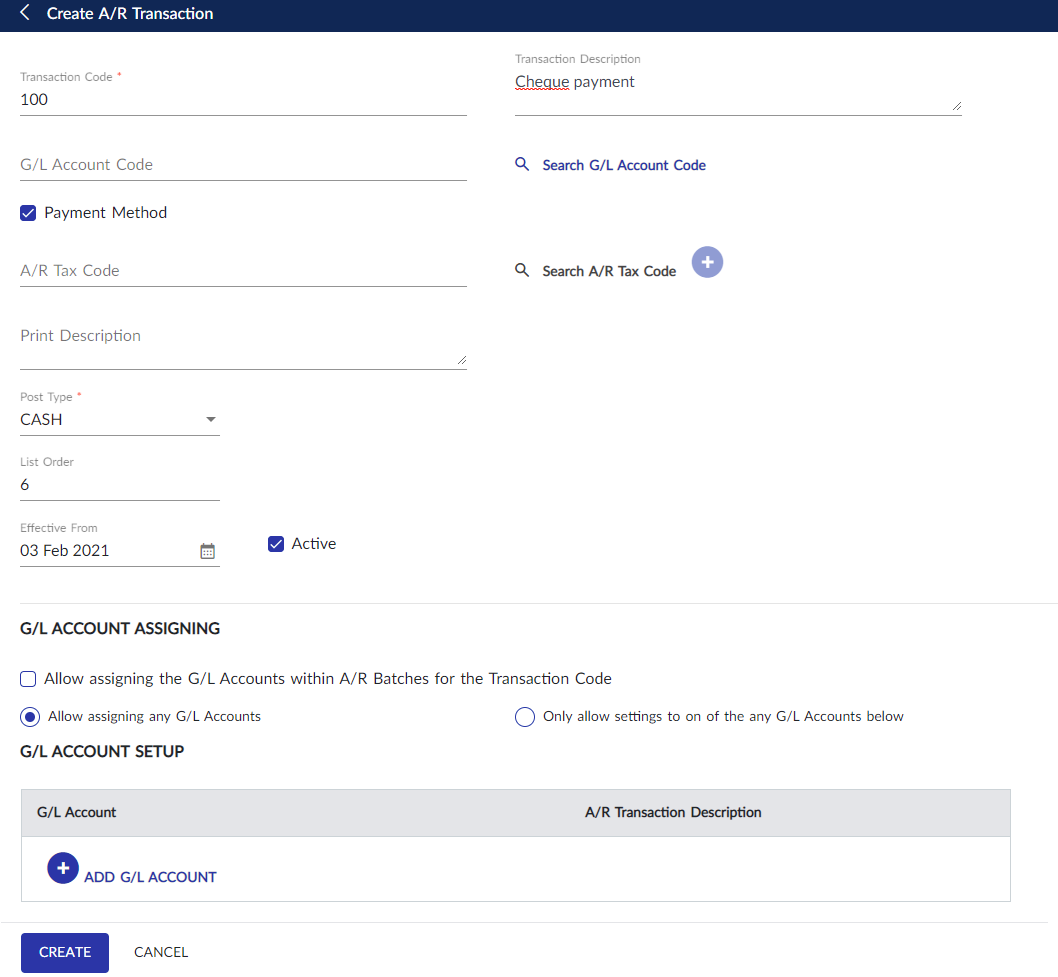
Click Create to save the transaction code.
Users can also perform the following actions in the A/R Transaction Code screen:
-
Modify the transaction code details using the Edit icon.
-
Delete a transaction code record using the Delete icon. The transaction code cannot be deleted in cases when the transaction containing the code has been posted to the customer’s A/R account.
-
Search for an existing transaction code using the transaction code or description.
-
Drag a transaction code to change positions within the grid using the Drag icon.
Configuring Credit Card Payments
The Credit Card Payment Setup option allows the user to create a payment network to perform credit card payments in the system.
Breakpoint: 190020 - Credit Card Payment (Engineering - Accounting)
Perform the following steps to create a credit card type:
Navigate to Accounting ➜ Accounts Receivable ➜ Accounts Receivable Code Setup ➜ Credit Card Payment Setup.
Click Create Credit Card Payment Setup.
Refer to the following table and fill in the fields:
|
Field |
Description |
|---|---|
|
Credit Card Type |
A name for the type of credit card. Up to 20 alphanumeric characters are supported. |
|
Description |
A description for the credit card type. Up to 50 alphanumeric characters are supported. |
|
Transaction Code |
Select the preferred transaction code from the drop-down list. The transaction codes created in the A/R Transaction Codes screen appear as options in the drop-down list. |
|
List Order |
The order in which the credit card type must appear in the grid. |
Click Create to save the credit card type.
Users can also perform the following actions in the Credit Card Payment Setup screen:
-
Modify the credit card type using the Edit icon.
-
Delete a credit card type record using the Delete icon. The credit card type that has been added to the customer’s profile cannot be deleted.
-
Search for a credit card type using the credit card code or description.
-
Drag a credit card type to change positions within the grid using the Drag icon.
Creating Account Categories
The A/R Account Categories option allows users to create account categories for the A/R account. When creating a customer record in the Customer Maintenance menu, the user can select the created account categories and link it to an AR code.
Breakpoint: 190060 - A/R Account Categories (Engineering - Accounting)
Perform the following steps to create an A/R account category:
Navigate to Accounting ➜ Accounts Receivable ➜ Accounts Receivable Code Setup ➜ A/R Account Categories.
Click Create Account Category to create a new record.
Refer to the following table and fill in the fields:
|
Field |
Description |
|---|---|
|
Category Code |
A unique code for the A/R account category. Up to 10 alphanumeric characters are supported. |
|
Category Description |
A description for the account category. Up to 50 alphanumeric characters are supported. |
|
List Order |
The order in which the account category must appear in the grid. |
|
Effective From |
The date from when the account category will be effective in the system. |
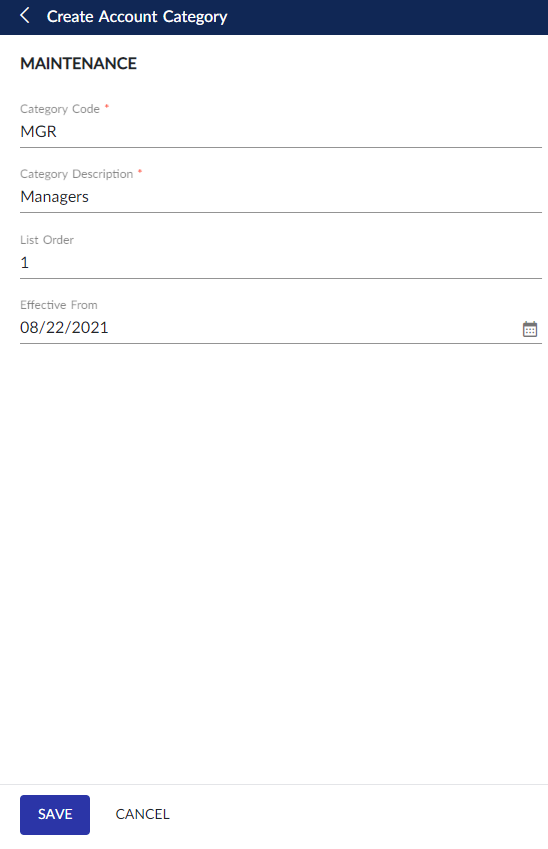
Click Save to save the account category.
Users can also perform the following actions in the A/R Account Categories screen:
-
Modify the account category using the Edit icon.
-
Delete an account category record using the Delete icon. The account category that has been added to the customer’s profile cannot be deleted.
-
Search for an existing account category using the AR code or description.
Creating Secondary Account Categories
The A/R Account Categories 2 option allows users to create additional account categories for the A/R account.
Breakpoint: 190065 - A/R Account Categories 2 (Engineering - Accounting)
Perform the following steps to create a secondary A/R account category:
Navigate to Accounting ➜ Accounts Receivable ➜ Accounts Receivable Code Setup ➜ A/R Account Categories 2.
Click Create Account Category 2 to create a new record.
Refer to the following table and fill in the fields:
|
Field |
Description |
|---|---|
|
Category 2 Code |
A unique code for the A/R account category. Up to 10 alphanumeric characters are supported. |
|
Category 2 Description |
A description for the account category. Up to 50 alphanumeric characters are supported. |
|
List Order |
The order in which the account category must appear in the grid. |
|
Effective From |
The date from when the account category must be effective in the system. |
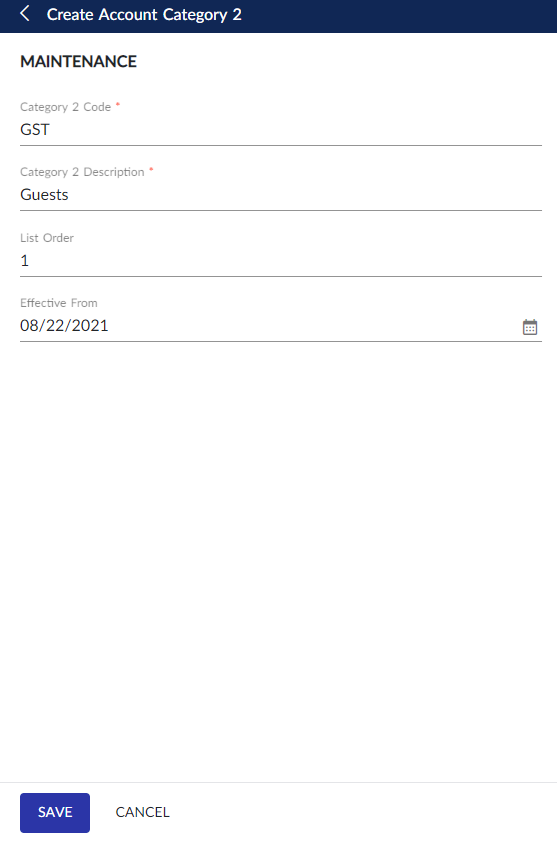
Click Create to save the account category.
Users can also perform the following actions in the A/R Account Categories 2 screen:
-
Modify the account category using the Edit icon.
-
Delete an account category record using the Delete icon. The account category that has been added to the customer’s profile cannot be deleted.
-
Search for an existing account category using the AR code or description.
Creating Miscellaneous Account Categories
The A/R Miscellaneous Types option allows users to create miscellaneous account categories for an A/R account.
Breakpoint: 190110 - A/R Miscellaneous Types (Engineering - Accounting)
Perform the following steps to create a miscellaneous account category for the A/R account:
Navigate to Accounting ➜ Accounts Receivable ➜ Accounts Receivable Code Setup ➜ A/R Miscellaneous Types.
Click Create A/R Miscellaneous Category.
Refer to the following table and fill in the fields:
|
Field |
Description |
|---|---|
|
Miscellaneous Category Code |
A unique code for the miscellaneous category. Up to 6 alphanumeric characters are supported. |
|
Miscellaneous Category Description |
A description for the miscellaneous category. Up to 40 alphanumeric characters are supported. |
|
List Order |
The order in which the miscellaneous category must appear in the grid. |
|
Effective From |
The date from when the miscellaneous category must be effective in the system. |
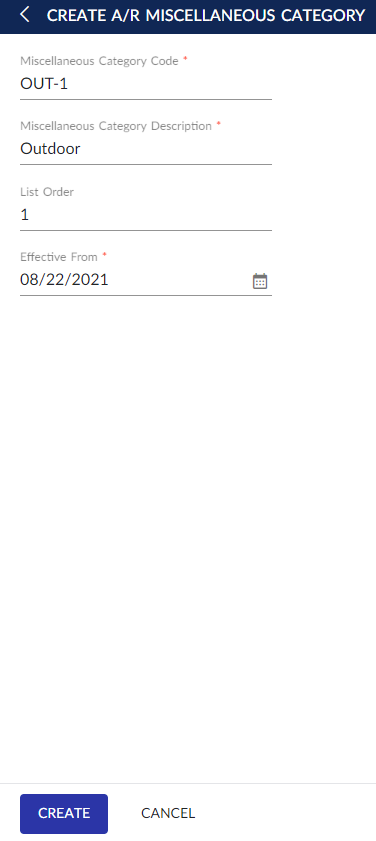
Click Create. The miscellaneous account category is created.
Users can also perform the following actions in the A/R Miscellaneous Types screen:
-
Modify the miscellaneous category details using the Edit icon.
-
Delete a miscellaneous category record using the Delete icon. However, the miscellaneous category that has been added to the customer’s profile cannot be deleted.
-
Search for a miscellaneous category using the category code or description.
-
Drag a miscellaneous category to change positions within the grid using the Drag icon.
Creating Discount Categories
The A/R Discount Categories option allows users to create discount categories for the A/R account. When creating a customer record in Customer Maintenance menu, the user can select the created discount categories and link it to an AR code.
Breakpoint: 190105 - A/R Discount Categories (Engineering - Accounting)
Perform the following steps to create a discount category:
Navigate to Accounting ➜ Accounts Receivable ➜ Accounts Receivable Code Setup ➜ A/R Discount Categories.
Click Create A/R Discount Category.
Refer to the following table and fill in the fields:
|
Field |
Description |
|---|---|
|
Discount Category Code |
A unique code for the discount category. Up to 6 alphanumeric characters are supported. |
|
Discount Category Description |
A description for the discount category. Up to 40 alphanumeric characters are supported. |
|
List Order |
The order in which the discount category must appear in the grid. |
|
Effective From |
The date from when the discount category must be effective in the system. |
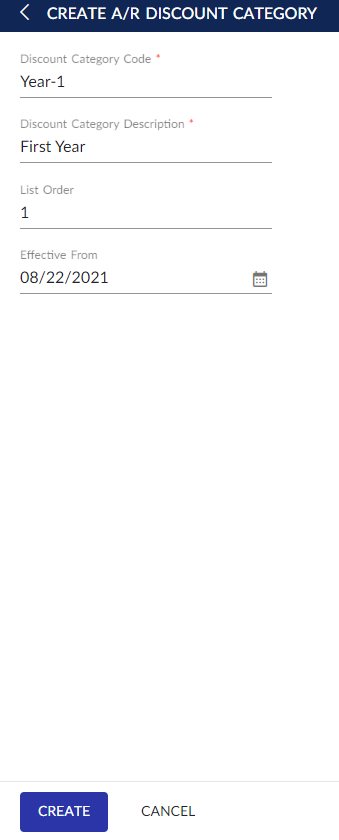
Click Create to save the discount category.
Users can also perform the following actions in the A/R Discount Categories screen:
-
Modify the discount category using the Edit icon.
-
Delete a discount category record using the Delete icon. The discount category that has been added to the customer’s profile cannot be deleted.
-
Search for a discount category using the category code or description.
-
Drag a discount category to change positions within the grid using the Drag icon.